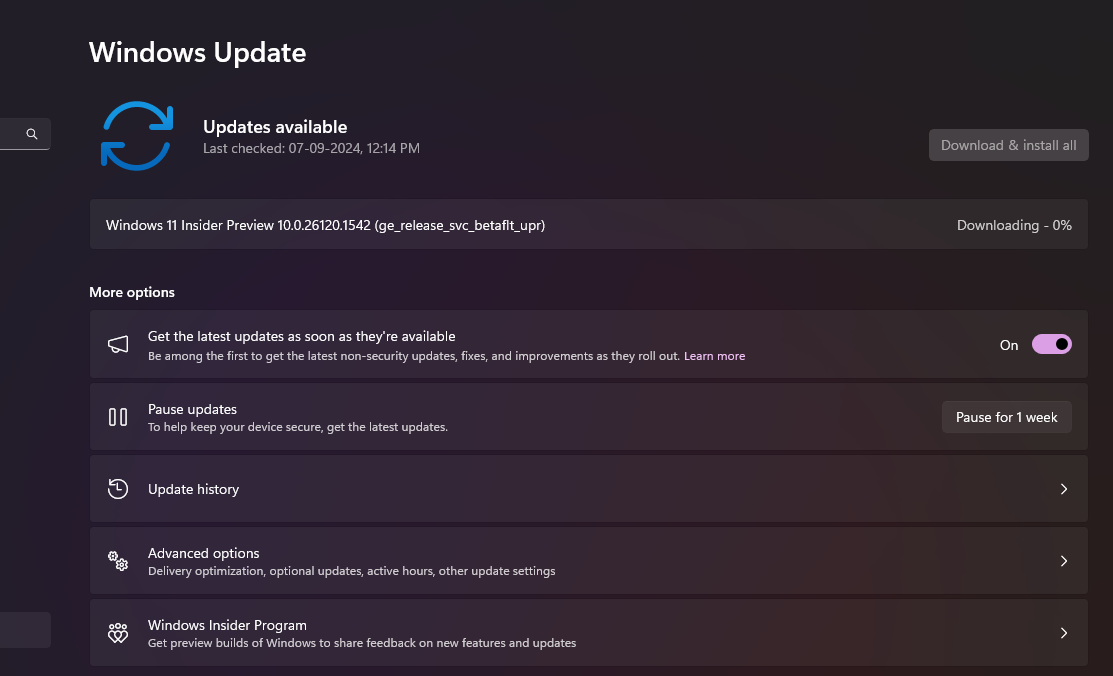
Windows 11 can show driver packages under Settings > Windows Update > Advanced options > Optional updates. Seeing a driver in that list does not mean your PC is broken or that every listed item should be installed immediately.
Microsoft automatically distributes recommended drivers through Windows Update. Optional driver updates are different: they are available for you to choose manually. That makes them useful when troubleshooting a device, but they are not a checklist that needs to be cleared on every healthy PC.
Why a driver appears under Optional updates
Hardware vendors can provide driver packages to Microsoft for Windows distribution. Depending on the package and Microsoft’s servicing rules, Windows may install a recommended driver automatically or expose another package as optional.
An optional package can be useful when the current driver has a compatibility problem, when a newly connected device is missing functionality, or when support guidance specifically tells you to install that version. It can also be older than the newest package available directly from the manufacturer.
When an optional driver is worth trying
Consider an optional driver when you have a specific symptom and the device matches the listed hardware. Examples include a network adapter that repeatedly disconnects, audio hardware that disappeared after an update, a device with a warning in Device Manager or a laptop component that is not working correctly after a clean Windows installation.
Before installing it, note your current driver version in Device Manager. That gives you a reference if the new package makes the problem worse. If the update fixes the issue, you now know which change mattered.
When you should leave the driver alone
If the device is stable, all features work and there is no security or compatibility reason to update, installing every optional driver can create unnecessary variables. This matters most on systems you depend on for work or competitive gaming, where stability can be more valuable than changing a working package without a clear benefit.
Graphics drivers are a good example. A new release can add support for a new game or fix a known bug, but it can also change shader caches, profiles or behavior in existing games. Read the vendor release notes before deciding that a new version is automatically better for your specific setup.
Windows Update or the manufacturer’s website?
For standard devices, Windows Update is often the easiest and safest source. For specialized hardware, the manufacturer may provide a package with newer fixes, firmware integration or a control application that Windows Update does not include.
Laptops deserve extra care. The notebook manufacturer can customize graphics, audio, touchpad, camera and power-management drivers for that model. If the laptop support page recommends a specific package, do not replace it with a generic driver just because the generic version number is higher.
When Microsoft cannot find a suitable updated driver, its guidance also points users to the hardware manufacturer’s website. Use the official support site rather than third-party driver-download utilities.
How to install an optional driver with less risk
Create a simple before-and-after record. Write down the device name and current driver version, install only the one package related to the problem, restart the PC, then test the same symptom. Avoid installing five optional drivers at once.
If the device becomes worse, open Device Manager and check whether Roll Back Driver is available. Our guide to checking and rolling back a changed Windows driver explains that process in more detail.
What about BIOS and firmware updates?
Do not treat BIOS, UEFI or device firmware exactly like an ordinary Windows driver. Firmware updates can be important, but they have different failure risks and instructions. Follow the PC or motherboard manufacturer’s procedure and keep the machine connected to reliable power during the update.
If an item in Optional updates is not clearly identified, search the hardware ID or device model before installing it. A few minutes spent identifying the package is better than changing a working system blindly.
The practical rule
Optional driver updates are tools, not maintenance chores. Install one when it addresses a problem you actually have, when the vendor or Microsoft recommends it for your hardware, or when you need a feature it provides. If the PC is stable and the driver is doing its job, leaving it alone is a perfectly reasonable choice.
Maya Brooks
Tracks Windows updates, driver releases, software changes and the bugs that can affect everyday PC use.
More from Maya Brooks →