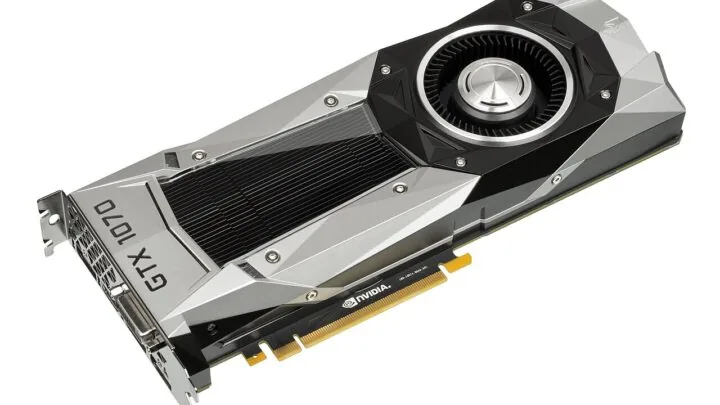
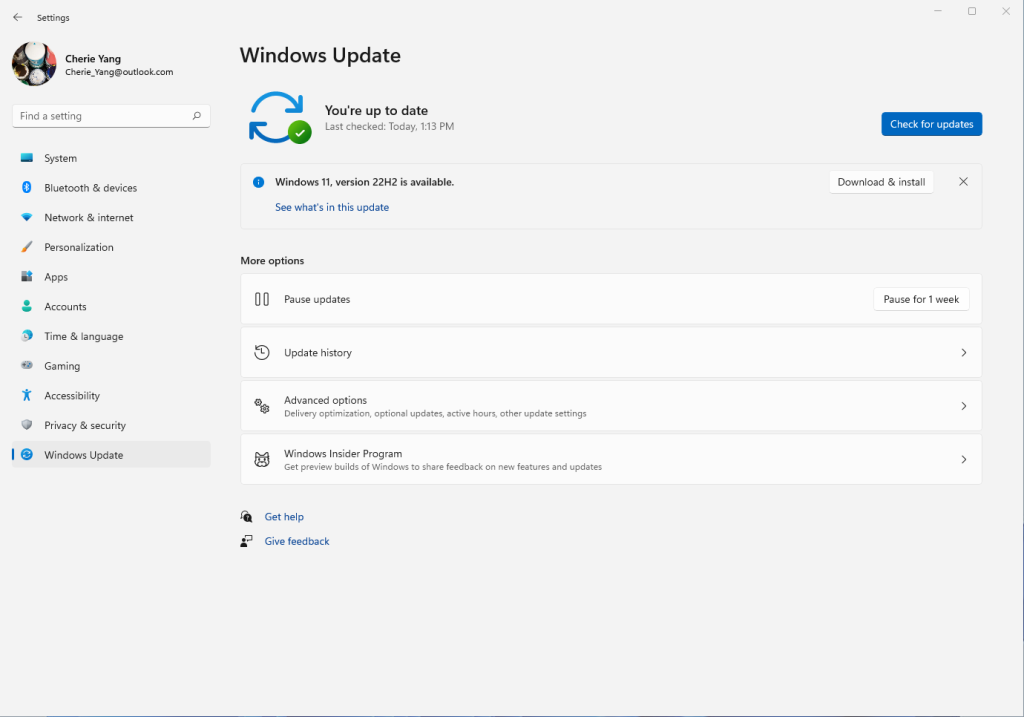
A graphics card, network adapter, audio device or USB controller can behave differently after Windows Update even when you did not manually install a driver. Windows distributes many hardware drivers through Windows Update, so a driver change can arrive alongside normal operating-system updates.
The important first step is to verify what is actually installed. Reinstalling several packages from different sources can make troubleshooting harder because you no longer know which change fixed or caused the problem.
Check the installed driver before changing anything
Open Device Manager, expand the category for the affected hardware, right-click the device and choose Properties. The Driver tab shows the driver provider, date and version. Write those details down or take a screenshot before you make another change.
Do not rely only on the date. Vendors do not always use the release date you expect, and Windows can install a package whose internal driver date looks older than the day it reached your PC. The version number and provider are usually more useful when comparing the installed package with the manufacturer’s download page.
Why Windows installs hardware drivers automatically
Microsoft uses Windows Update to distribute recommended drivers for many hardware classes. Those packages are generally supplied by hardware vendors and certified for Windows before distribution. This is normal behavior and is one reason a fresh Windows installation can make most devices work without visiting every manufacturer website.
Automatic distribution does not mean that every PC should always use the Windows Update package. Graphics cards, gaming peripherals, professional audio interfaces and some laptop components can have vendor software or feature-specific packages that are newer than the version currently offered through Windows Update.
Use Roll Back Driver when the timing is clear
If a device worked normally, a driver update was installed, and the problem appeared immediately afterward, the Roll Back Driver button in Device Manager is a useful test. Microsoft specifically documents rollback for problems that begin after a recent driver update.
Open the device’s Properties window, choose the Driver tab, select Roll Back Driver, provide a reason when prompted and restart if Windows asks you to. The button can be unavailable when Windows no longer has the previous driver package stored locally.
Rollback is a diagnostic step, not a guarantee that the older driver should be kept forever. If the old version fixes the problem, check the hardware vendor’s support page for a newer corrected release before staying on an old package indefinitely.
When reinstalling the driver makes more sense
If the installed driver appears corrupted, the device has a Device Manager error, or rollback is unavailable, Microsoft also documents a reinstall path. Uninstall the device from Device Manager and restart Windows so the operating system can attempt to install the device again.
For hardware that depends on a vendor control application, use the vendor’s own instructions instead of assuming a generic uninstall is enough. GPU packages, laptop platform drivers and wireless peripherals can contain several components that are designed to be installed together.
Do not mix troubleshooting changes
A common mistake is to roll back the driver, change BIOS settings, disable Windows features and reinstall the application all in one session. If the problem disappears, you do not know which change mattered. Make one reversible change, reproduce the original problem, then record the result.
For graphics problems, also separate driver behavior from game-specific shader compilation or settings changes. Our guide to whether you should update a GPU driver when everything already works explains why the newest package is not automatically necessary on every stable system.
What to do if Windows installs the same driver again
First determine whether a newer vendor package exists and is intended for your exact hardware. Laptop manufacturers sometimes customize graphics, audio, touchpad or power-management packages for a specific model. In those cases, the laptop support page may be a better source than a generic component download.
If the problem is serious and repeatable, note the device model, driver version and Windows build before contacting the vendor. That information is much more useful than saying only that “Windows changed the driver.” It also makes it easier to confirm whether the issue is already documented in release notes or support guidance.
Maya Brooks
Tracks Windows updates, driver releases, software changes and the bugs that can affect everyday PC use.
More from Maya Brooks →