A mouse can feel completely different after a Windows reinstall, a driver change, a new game profile or a switch between USB ports. Before assuming the sensor or switches are failing, separate three things: Windows pointer settings, application or game settings, and the physical mouse.
The fastest diagnosis is a controlled one. Restore a known baseline, test the mouse outside the program where you first noticed the problem, then change only one setting at a time.
Start with Windows pointer speed
In Windows 11, open Settings > Bluetooth & devices > Mouse. Microsoft exposes a Mouse pointer speed control there. If the pointer suddenly feels much faster or slower everywhere on the desktop, check this before changing DPI in the mouse software.
DPI and Windows pointer speed are different layers. A mouse can have the same hardware DPI while Windows scales the resulting pointer movement differently. If you change both at once, it becomes difficult to return to the previous feel.
Check Enhance pointer precision deliberately
Windows also provides Enhance pointer precision. Microsoft describes it as improving pointer accuracy when the mouse is moving slowly. The setting changes how pointer movement responds to hand speed, so toggling it can make the desktop feel noticeably different even though the mouse hardware has not changed.
For troubleshooting, the important thing is consistency. Note whether the option is currently on or off, then test the same movement after changing only that option. In games that use raw mouse input, Windows pointer processing may be bypassed, so a problem that appears only in one game can have a different cause.
Do not confuse double-click speed with a failing switch
Windows has a double-click speed setting under the classic Mouse Properties dialog. If double-clicking folders has become difficult, check that setting before deciding the left switch is defective.
A failing mouse switch usually looks different: a single physical press can sometimes register as two clicks, a held button can release unexpectedly, or clicks can be missed. Those symptoms should be tested outside the original game or application so software bindings do not confuse the result.
If you want a browser-based second check for buttons, scrolling and other input behavior, ACC64 Mouse Test provides a browser-based hardware test that can help you verify what the browser is receiving from the device.
Test the USB path before blaming the mouse
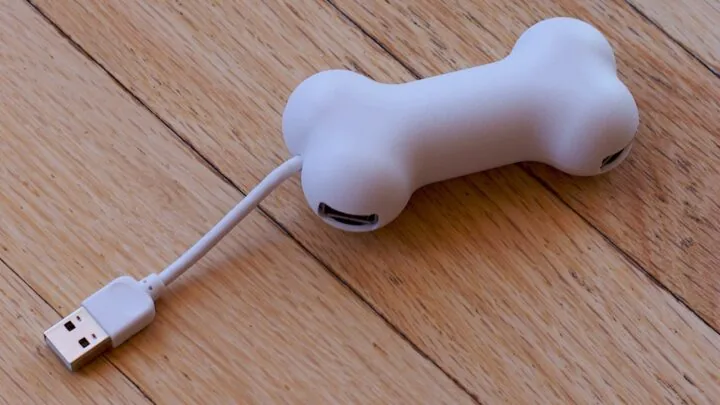
For a wired mouse or wireless receiver, move the connection to a direct USB port on the PC instead of a hub, dock or monitor. A flaky hub, overloaded extension or loose connector can create disconnects that feel like sensor stutter.
For a 2.4 GHz wireless mouse, also test the receiver closer to the mouse when possible. USB 3.x devices, metal cases and crowded wireless environments can affect some setups. If the mouse includes an extension adapter for the receiver, use it as the manufacturer recommends.
Separate desktop behavior from game behavior
If the pointer feels normal on the Windows desktop but wrong only in one game, compare the game’s sensitivity, raw-input option, field of view and any per-game profile in the mouse software. A game update can reset sensitivity or switch input modes without changing Windows at all.
If every application shows the same problem, Windows settings, the device driver, the USB connection or the mouse itself becomes more likely. This is why testing in more than one program is valuable.
When a driver check makes sense
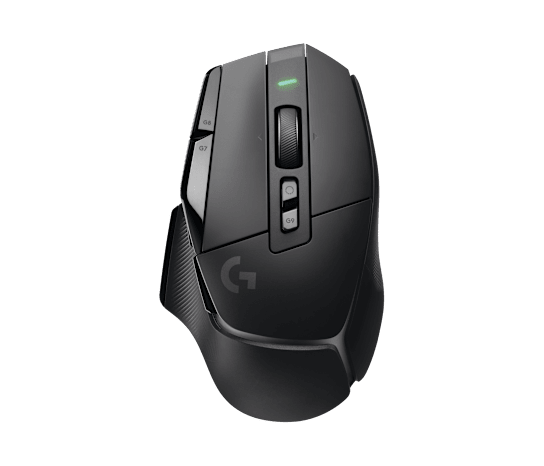
Basic mice often use standard Windows HID drivers and do not need a special driver package for normal clicking and movement. Gaming mice can add vendor software for DPI stages, macros, polling options, lighting and firmware.
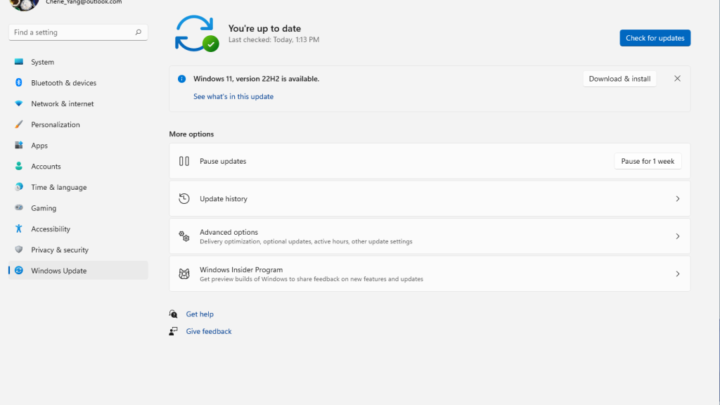
If the problem started immediately after a driver or Windows update, open Device Manager and note the mouse or HID driver details before reinstalling anything. For a vendor-specific gaming mouse, also check the manufacturer’s support page and software release notes.
Signs that the mouse probably has a hardware problem
Hardware becomes more likely when the same symptom follows the mouse to another PC, when a button produces extra clicks in multiple applications, when the cable reacts to movement, or when the scroll wheel skips in both directions regardless of software settings.
At that point, replacing or repairing the mouse is more reasonable than continuing to change Windows settings. Until then, a five-minute baseline test can prevent a perfectly good mouse from being replaced because one setting or USB connection changed.
Daniel Reed
Writes practical explainers and troubleshooting guides for performance problems, hardware quirks and confusing PC behavior.
More from Daniel Reed →