Hardware-Accelerated GPU Scheduling has the perfect name for an internet “gaming tweak”: it sounds technical, it lives in Windows graphics settings, and it involves moving work closer to the GPU. That does not make “on” or “off” universally faster.
Microsoft introduced the feature as a change to the graphics scheduling architecture. On supported hardware and drivers, Windows can offload more of the scheduling work to dedicated GPU hardware instead of relying on the traditional software scheduling path for every detail. Microsoft’s own description was deliberately modest: for most users, the transition should be transparent.
What HAGS actually changes
The GPU is shared by games, the desktop, browsers, video playback and other applications. Windows needs a scheduler to coordinate that work. Hardware-Accelerated GPU Scheduling lets supported GPUs take on more of the high-frequency scheduling work while Windows still retains control over priorities and isolation.
This is a platform change, not a replacement for a faster GPU. It does not add shader units, memory bandwidth or VRAM. Any performance difference comes from how the scheduling path interacts with a particular workload, driver and CPU.
Why the setting may not appear on every PC
Windows shows HAGS only when the GPU and its display driver support the feature. If the toggle is absent, that does not automatically mean Windows is broken. A different graphics architecture, an older driver or the way a laptop vendor configures hybrid graphics can affect availability.
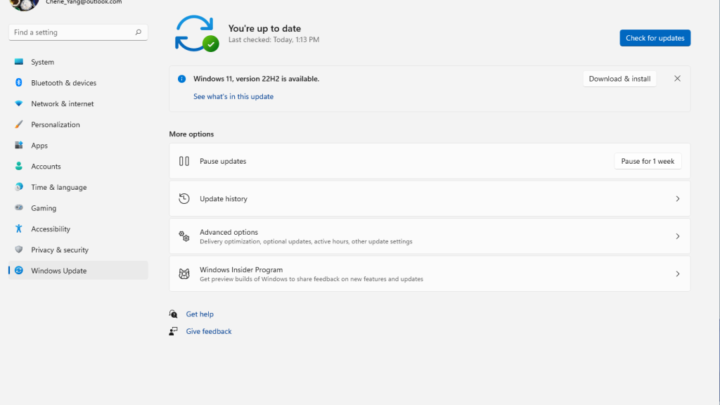
If you expect the option and cannot find it, update Windows and the appropriate display driver first. On laptops, check the manufacturer’s support page as well as the GPU vendor because notebook graphics packages can contain platform-specific components.
Do not decide based on average FPS alone
A scheduling change is more likely to show up in CPU-limited situations, frame pacing, latency or isolated compatibility problems than as a giant increase in average FPS. That means one built-in benchmark score is a weak test.
If you want to compare HAGS on your PC, use the same game, save point or repeatable benchmark, the same graphics settings and the same background applications. Run each state more than once after a restart. Compare average FPS, 1% lows and frame-time behavior if your tool exposes them.
A one- or two-frame difference in a benchmark that naturally varies by several frames is noise, not an optimization victory.
When turning it off is a useful troubleshooting step
There are cases where a graphics tool, capture workflow, older game or particular driver behaves differently with hardware scheduling enabled. If you have a repeatable problem that appeared after a driver or Windows change, toggling HAGS is a reasonable A/B test because it changes one clear part of the graphics stack.
The important part is to treat the toggle as a diagnostic variable. If disabling it fixes a specific issue, note the driver version and application involved. That gives you something useful to revisit after the next driver update instead of permanently carrying a random collection of tweaks from an old forum post.
When leaving it alone is the better choice
If the PC is stable, games are smooth and you cannot measure a meaningful difference, leave the setting at its current state. There is little value in cycling low-level graphics options just because an optimization guide lists them.
This is especially true when several settings are changed together. Turning off HAGS, Game Mode, Memory Integrity, overlays and power-saving features at the same time can produce a different result, but it also destroys your ability to identify which change mattered.
Use a clean A/B test
- Record the current HAGS state before changing it.
- Pick one repeatable game or benchmark.
- Keep resolution, graphics settings and frame caps identical.
- Close avoidable background tasks.
- Test several runs, then change HAGS and restart Windows.
- Repeat the same runs and compare frame times as well as FPS.
If the result is effectively identical, that is a useful result: HAGS is not the bottleneck you need to chase on that machine. If one state clearly solves a reproducible issue, you have a defensible reason to use it until a driver or application update changes the picture.
What to expect in practice
HAGS is best understood as infrastructure. It modernizes how Windows coordinates GPU work on supported systems, but the effect visible to the player depends on the rest of the stack. CPU load, the graphics API, the game engine, overlays, capture software and the display driver can all matter.
That is why “always enable it” and “always disable it” are both poor advice. On a gaming PC, the best setting is the one that is stable and measurably better for the workloads you actually use—and often the measured difference will be too small to justify touching it at all.
Maya Brooks
Tracks Windows updates, driver releases, software changes and the bugs that can affect everyday PC use.
More from Maya Brooks →