A USB device that disconnects for one second and comes back can be more frustrating than a device that is completely dead. The intermittent failure makes everything look suspicious: the webcam, cable, Windows, motherboard, hub and driver can all appear guilty.
The fastest way through that mess is to simplify the connection before changing power settings. Windows does have a feature called USB selective suspend, but it is designed to let individual idle ports enter a low-power state without shutting down the entire hub. It should not be the first thing you disable whenever a device misbehaves.
Start by removing the hub
Connect the problem device directly to the PC. Remove the USB hub, monitor hub, dock, extension cable and front-panel pass-through from the test if possible. If the disconnects stop, you have narrowed the problem to the path rather than the device or application.
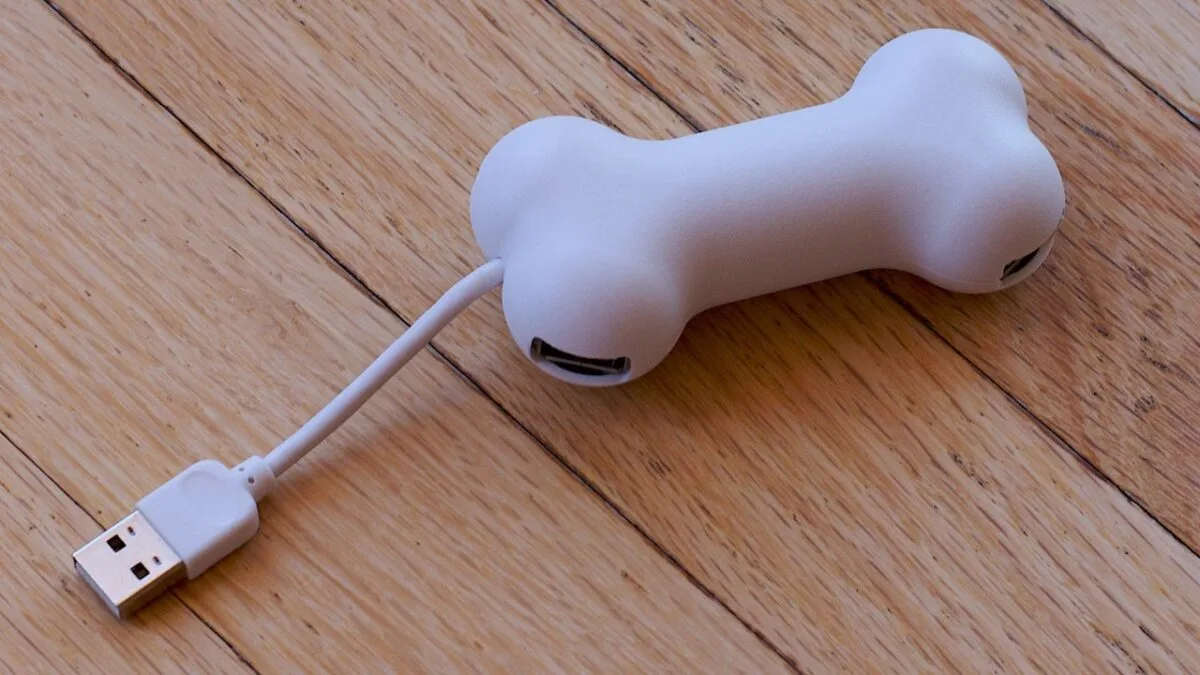
This is especially important for devices with higher or bursty power demands: portable SSDs, capture devices, webcams, audio interfaces and some wireless receivers. A passive hub shares the power and bandwidth available from its upstream connection. The fact that every port physically accepts a device does not mean every combination of devices will behave identically under load.
Swap the cable even when it looks fine
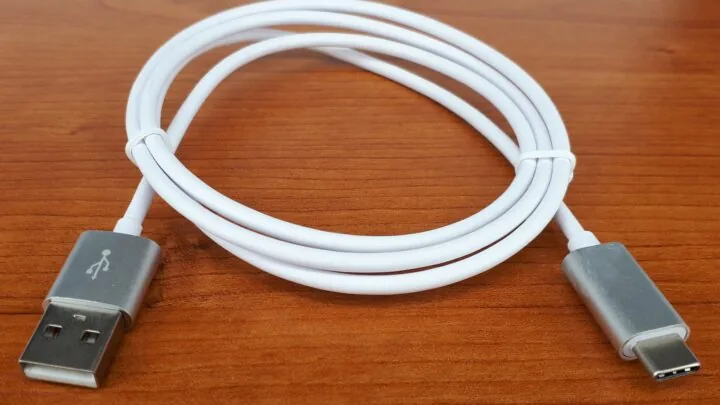
USB cables fail in boring ways. A cable can charge a phone yet become unreliable at higher data rates. A connector can also be mechanically loose enough to drop briefly when the desk moves.
Use a short, known-good cable that supports the required data rate. For a removable-cable device, this is one of the cheapest tests you can make. For fixed-cable peripherals, try a different PC port and avoid adapters.
Rear motherboard ports are a useful control test
On a desktop, rear USB ports connected directly to the motherboard are useful for troubleshooting because they remove the case’s front-panel cable and connector from the path. If a device is stable at the rear but unreliable at the front, you do not need to reinstall Windows to learn something important.
Also try a port from a different group if the motherboard has several USB controllers or a mixture of USB generations. You are looking for a pattern, not for the mythical “best USB port.”
Then look at power management
Microsoft documents USB selective suspend as a normal Windows power-saving mechanism. It allows the hub driver to suspend an individual port when its device is idle and resume it when needed. On a properly functioning device and driver, that transition should be transparent.
If you have already proved that the cable and direct connection are stable but disconnects correlate with idle/wake behavior, selective suspend becomes a reasonable diagnostic variable. Test it temporarily rather than treating “disable all USB power saving” as a permanent performance tweak.
Do not disable every power option at once
There are several places where USB-related power behavior can be influenced: the system power plan, device properties, vendor utilities and firmware. Changing them all at once makes it impossible to know what fixed the issue.
Change one setting, reproduce the same idle or workload scenario, and record the result. If nothing improves, revert the change. That keeps the PC close to its normal configuration and prevents one troubleshooting session from turning into a permanent collection of undocumented tweaks.
Powered hubs solve a different problem
A powered USB hub can help when several devices need more power than a passive hub can comfortably provide. It does not automatically solve signal-quality problems, bad cables or driver issues. If one device disconnects even when plugged directly into the PC, buying a powered hub is not a logical first fix.
Conversely, if four bus-powered devices are stable individually but unstable when they all share one passive hub, power distribution becomes a much stronger suspect.
Check Event Viewer only after you have a reproducible case
Windows can log device arrivals, removals and driver events, but the logs become useful when you know exactly when the dropout occurred. Reproduce the disconnect, note the time and then inspect the events around that moment. That is more productive than searching hundreds of old warnings for anything containing the word USB.
A practical test order
- Connect the device directly to the PC.
- Try a known-good short cable if the cable is removable.
- Test a different physical USB port.
- On a desktop, compare a rear motherboard port with the front panel.
- Disconnect other high-power devices from the same hub.
- Update the device, chipset and USB-related drivers from the appropriate vendor.
- Only then test selective suspend or other power-management settings.
If the device is stable when the connection is simple, add the removed pieces back one at a time. The first component that brings the dropout back is far more useful evidence than a generic driver-reinstall checklist.
USB troubleshooting is mostly about reducing variables. A direct port, one cable and one device give you a clean baseline. Once that baseline is stable, hubs and power features are easy to test instead of easy to blame.
Daniel Reed
Writes practical explainers and troubleshooting guides for performance problems, hardware quirks and confusing PC behavior.
More from Daniel Reed →