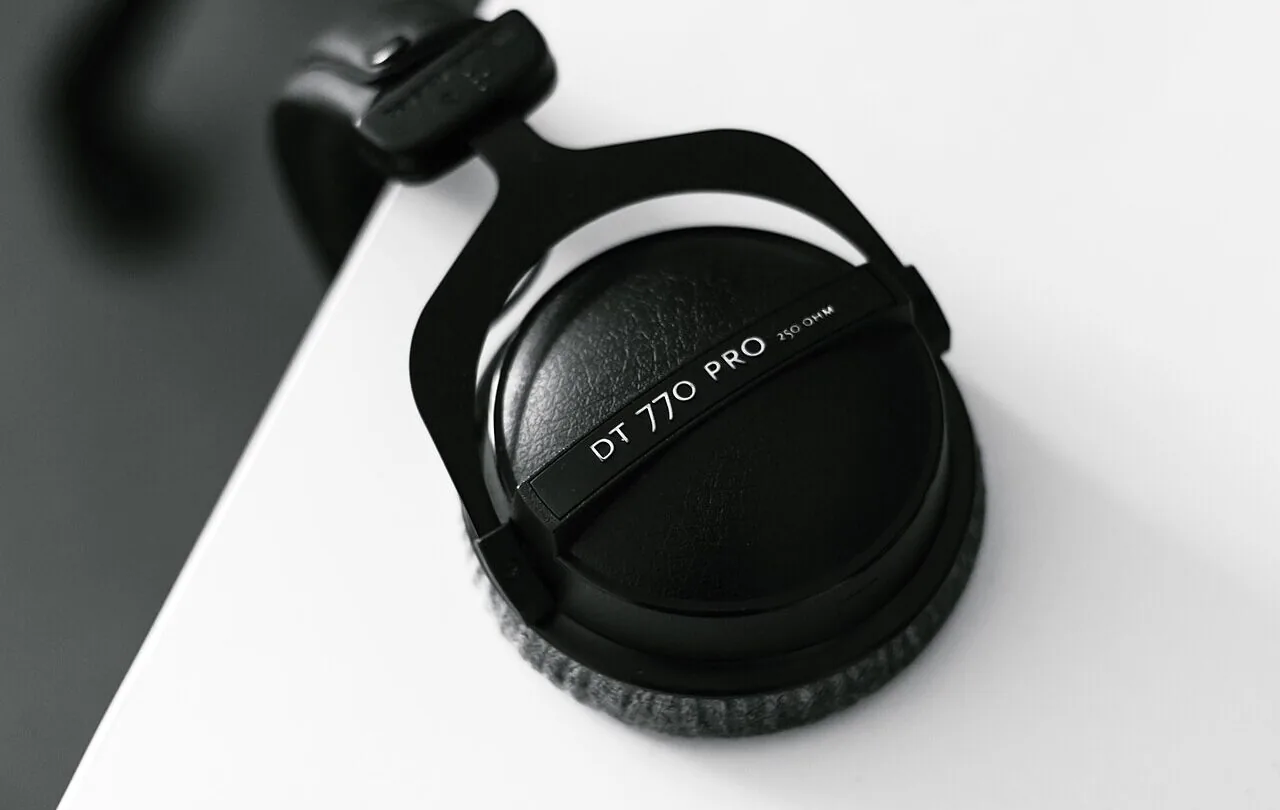
When one side of a headset sounds quieter than the other, it is easy to assume the driver inside the earcup is failing. Sometimes it is. But Windows balance settings, a partially inserted plug, a dirty connector, a Bluetooth problem or even the audio file itself can produce almost the same symptom.
The fastest way to troubleshoot it is to work from software to connection to hardware, changing one variable at a time. That lets you avoid replacing perfectly good headphones because one setting moved by accident.
Start by proving the problem is really left-versus-right
Use a known stereo source and listen to each channel separately. A music track is not ideal because instruments may already be mixed more heavily to one side. A simple left/right test signal makes the imbalance obvious.
You can run a browser-based left/right headphone test and compare both channels at the same system volume. Start quietly. Test tones do not need to be loud to reveal whether one side is missing or noticeably weaker.
If the channel test is balanced but one particular game, video or song is not, the headphones may be fine. Check that application’s audio settings and try another source before changing Windows.
Check Windows channel balance
Microsoft specifically recommends checking left and right balance when Bluetooth audio plays in only one channel. In Windows 11, open Settings → System → Sound, select the output device and inspect its volume or channel controls. Left and right should normally be set equally unless you intentionally changed them.
Also check the Volume mixer if the problem appears in only one application. Per-app volume settings can create confusing differences even when the main system volume looks correct.
Disable audio processing for one test
Enhancements, spatial effects and vendor audio software can alter the signal before it reaches the headphones. Microsoft includes disabling audio enhancements among its troubleshooting steps for quiet or distorted audio.
Temporarily turn off enhancements and spatial audio, then repeat the left/right test. If the imbalance disappears, re-enable features one at a time until you find the setting responsible. You do not need to permanently give up every enhancement just because one profile was misconfigured.
Analog plugs can fail in surprisingly subtle ways
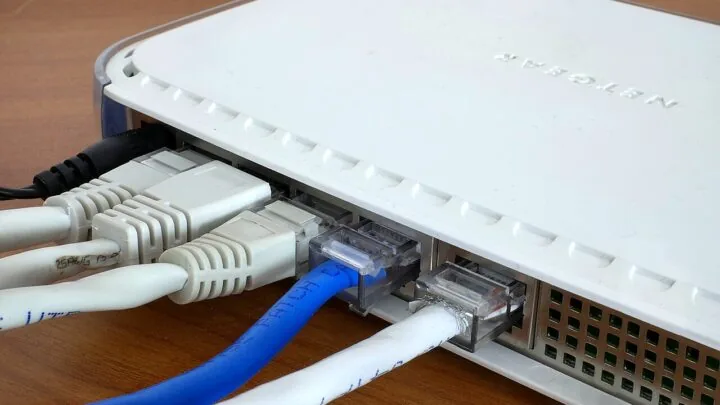
A 3.5 mm connector that is not fully seated can lose or mix channels. Unplug it and reconnect it firmly. If the device uses a detachable cable, reconnect both ends and try another compatible cable if available.
Inspect adapters as well. Headset splitters, USB DACs and extension cables add extra contacts that can become loose or contaminated. A problem that disappears when one adapter is removed points to the connection path rather than the headphones themselves.
Swap the headphones to another device
This is one of the strongest tests you can do. Connect the headphones to another computer, phone, console or audio interface and play the same left/right signal.
If the same side remains quieter on a completely different source, the probability of a headphone or cable fault rises sharply. If the imbalance disappears, focus on the original PC, output device, driver or software configuration.
Bluetooth adds battery, pairing and profile variables
For Bluetooth headphones or earbuds, charge both sides fully and reconnect them. Microsoft notes that low battery can contribute to unexpected one-channel behavior on some Bluetooth devices.
Remove the device from Windows and pair it again if the problem persists. If the headphones can also connect by cable or USB, compare modes. Balanced sound over cable but not Bluetooth tells you the speaker drivers themselves are probably not the first thing to blame.
Check the physical fit before diagnosing the electronics
Perceived volume is affected by the seal around your ear. A worn pad, glasses frame, hair or an earbud tip that does not seal equally can make one side sound thinner and quieter, especially in the bass.
Swap the headphones around briefly—left earcup on the right ear and vice versa—at low volume. If the “quiet side” follows the earcup, the hardware path is suspect. If the perceived imbalance stays with the same ear, fit or hearing may be contributing and a headphone repair will not solve that.
Do not use extreme balance as a permanent fix for failing hardware
Moving Windows balance can compensate for a small personal hearing difference, but it is a poor repair for a cable or driver that is actively failing. If the imbalance is getting worse or changes when the cable moves, fix the physical cause.
Likewise, avoid raising overall volume aggressively just to make the weak side audible. That exposes the normal side to unnecessary volume and can make troubleshooting harder.
When the headphones are probably faulty
I would suspect hardware when the same channel is consistently quieter on multiple sources, with multiple cables when the cable is replaceable, after balance and processing settings have been ruled out.
Intermittent sound when the cable bends points toward the cable, plug or socket. Distortion only on one side can indicate a damaged driver. On true-wireless earbuds, a persistent one-side problem after charging, cleaning the contacts and re-pairing may justify a reset or manufacturer service.
A five-minute isolation test beats random driver reinstalls
Audio troubleshooting becomes much easier when you stop changing several things at once. Confirm the channel difference, check Windows balance, remove processing, reconnect the cable or Bluetooth link, then test another source.
By the end of that sequence you should know whether the problem follows the headphones or stays with the PC. That is enough information to choose the next step without guessing—and without replacing hardware that was never broken.
Daniel Reed
Writes practical explainers and troubleshooting guides for performance problems, hardware quirks and confusing PC behavior.
More from Daniel Reed →