Short answer: minimum requirements usually mean a game should start under some conditions, not that it will deliver the frame rate, resolution or image quality you want. Compare the exact CPU, GPU, RAM and storage requirements with your PC’s hardware, then consider your monitor and performance target.
A store page can reduce a complicated performance question to two short lists: minimum and recommended. Those lists are useful, but they rarely describe every test condition. “Recommended” may refer to 1080p, a particular graphics preset or a frame-rate target that is never stated.
Minimum does not mean smooth
A PC that meets the minimum specification may need low settings, a lower resolution or upscaling to remain playable. It may also struggle in crowded scenes even if the opening area looks fine. Treat the minimum list as a compatibility floor rather than a quality promise.
Recommended hardware is a better starting point, but it is still not universal. A 60Hz 1080p monitor and a 1440p high-refresh display place very different demands on the same graphics card.
Compare exact component models
“Core i7” or “GeForce RTX” is not precise enough. Product families span many generations and performance levels. Laptop versions can also run at different power limits from similarly named desktop parts.
- GPU: compare the exact model, available VRAM and target resolution.
- CPU: check generation and model, not only core count.
- RAM: capacity affects headroom and stutter when the system is full.
- Storage: some games require an SSD for acceptable streaming and load times.
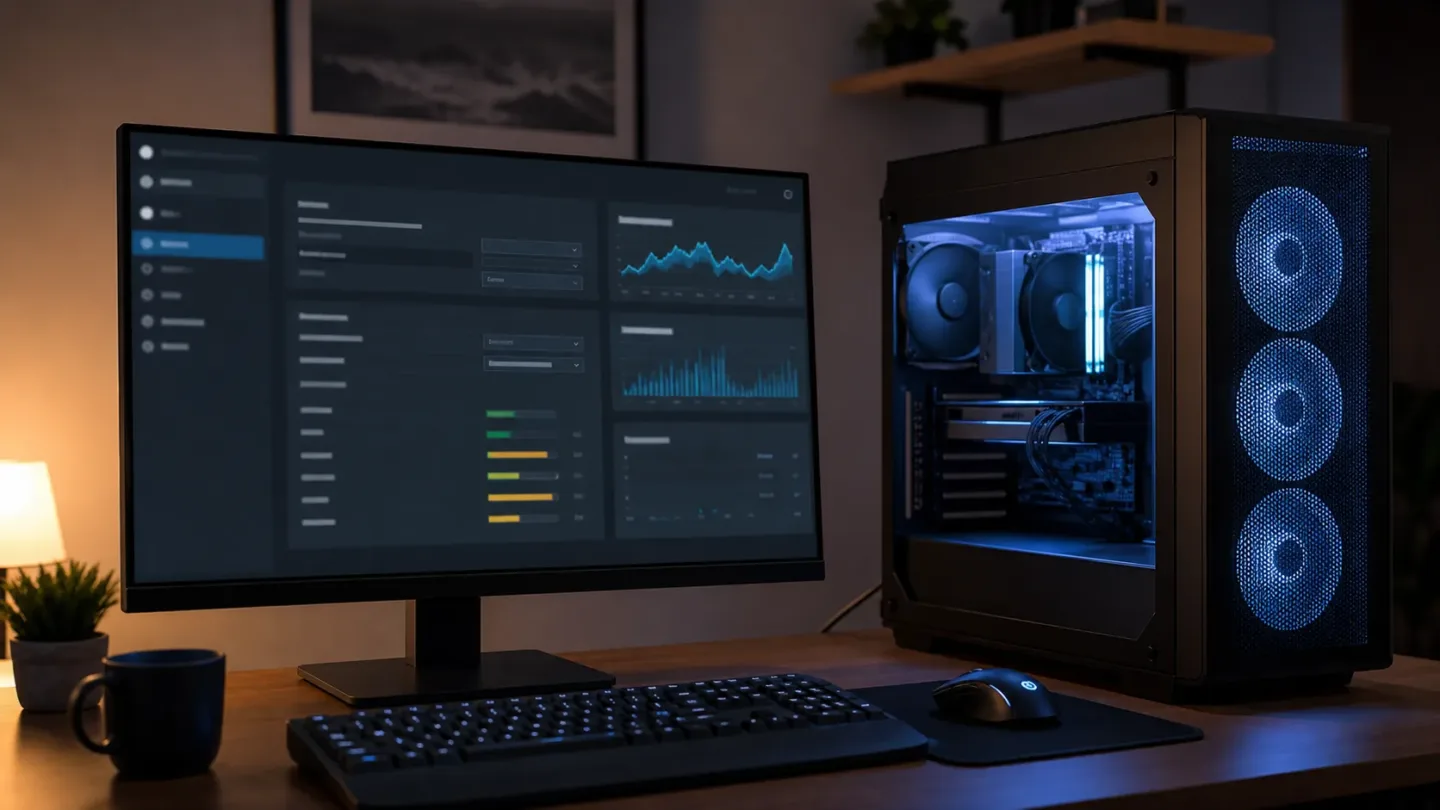
If you want a quick second opinion, ACC64 provides a free game FPS and PC performance estimator. It compares a selected game with your hardware and resolution. Treat its result as an estimate rather than a benchmark: drivers, temperatures, updates, power limits and the exact scene can change real performance.
Choose a target before judging the result
Decide whether you want 30, 60, 120 or 144 FPS and whether image quality or responsiveness matters more. A slower single-player game can feel acceptable at a stable 40 FPS, while a competitive shooter benefits from higher and more consistent frame rates.
Average FPS is not the whole experience. Large gaps between the average and slower frames can feel like hitching. Our explanation of 1% lows shows why two PCs with the same average can feel different.
Use return windows and real benchmarks
Check benchmarks using the same game version, resolution and settings you plan to use. Prefer several reputable test sources over one video. Make sure the tested CPU is not much faster than yours, because a high-end processor can hide a bottleneck that would appear on your system.
Before buying, confirm the store’s refund conditions, download size and free drive space. After installation, test a demanding area rather than only the tutorial. Change one setting at a time so you can see whether the GPU, CPU or memory is the actual limit.
A practical five-minute checklist
- Write down your exact CPU, GPU and RAM capacity.
- Confirm your intended resolution and frame-rate target.
- Compare both minimum and recommended requirements.
- Check matching benchmarks and estimated performance.
- Leave room for game updates, background apps and thermal limits.
The right question is not simply “Will it run?” It is “Will it run the way I want on my specific PC?”
Ryan Carter
Focuses on PC game performance, patches, system requirements, Steam and the practical side of getting games to run well.
More from Ryan Carter →