USB-C makes laptop charging look simpler than it really is. The plug fits, the battery icon appears and Windows says the machine is connected to power — yet the battery may climb painfully slowly, stay at the same percentage during a game, or even continue to drain under load.
That does not automatically mean the battery or charger is defective. USB-C is a connector format. The actual charging power depends on USB Power Delivery support and on the capabilities of every part of the chain.
USB-C does not guarantee a particular wattage
The USB Implementers Forum says USB Power Delivery can support power levels up to 240 W with the current extended power range specification. That headline number is a maximum capability of the standard, not a promise that every USB-C charger, cable, dock or laptop can use it.
A small phone charger and a high-power laptop adapter can use the same physical connector while offering very different power profiles. A laptop can only draw a level that both sides support and negotiate.
Start with the charger’s rated output
Look at the adapter label or manufacturer specification and find the USB-C Power Delivery output. Compare it with the power rating of the laptop’s original adapter. If the laptop shipped with a much higher-wattage supply, a smaller charger may be fine for light office work but unable to keep up with the CPU and GPU during a heavy workload.
This is especially visible on performance laptops. The machine may accept USB-C charging for travel while still requiring its larger proprietary adapter for unrestricted gaming performance. The existence of a USB-C charging port does not mean it replaces every other power input at the same level.
The cable is part of the power path
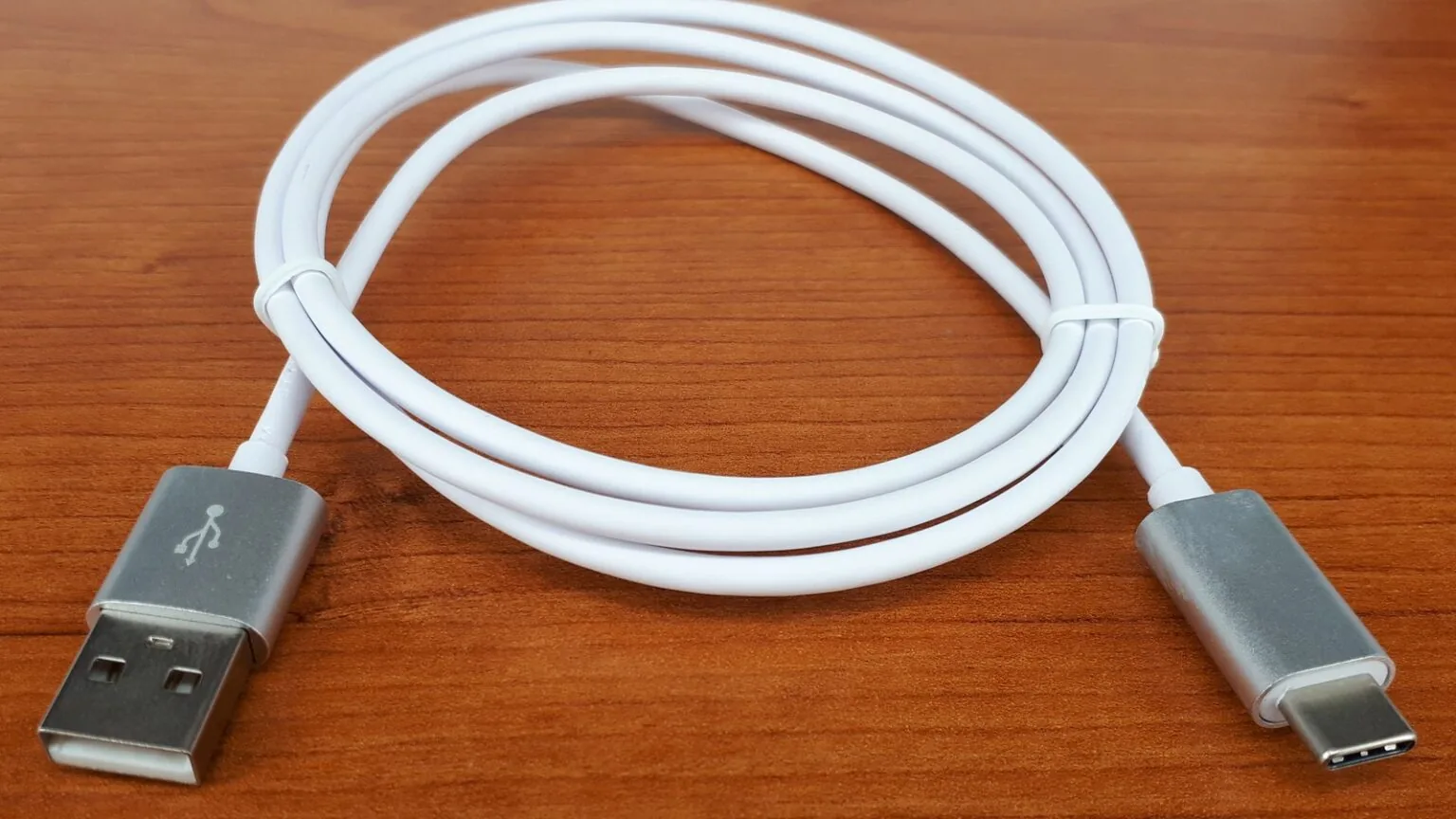
USB-C cables are not all equivalent. High-power USB Power Delivery modes require a cable designed and rated for those levels. USB-IF’s current Power Delivery material distinguishes the higher-power Extended Power Range introduced with USB PD 3.1, which reaches up to 240 W over suitable USB Type-C cables and connectors.
If charging becomes slow only after swapping cables, put the original or a clearly rated cable back into the test. Avoid diagnosing the laptop with an unknown cable from a phone accessory drawer when the laptop expects much more power.
Not every USB-C port on the laptop is the same
Some notebooks have multiple USB-C ports with different capabilities. One may accept charging input, another may support only data and display output, and a Thunderbolt or USB4-labeled port may have a different power role from a nearby plain USB-C port.
Check the laptop manual or the symbols next to the ports. If the manufacturer specifies a particular charging port, use that one. A connector that physically fits is not proof that the port supports the required power direction or wattage.
Docks can change the available power
A dock adds another device to the negotiation. Its upstream power supply has to cover the dock itself and whatever power the dock is designed to pass to the computer. A 100 W brick connected to a dock does not automatically mean the laptop receives the entire 100 W.
When troubleshooting slow charging, temporarily remove the dock and connect a known-good charger directly to the laptop. If charging behavior immediately improves, investigate the dock’s advertised host-charging limit and its own power adapter.
Watch what happens under load, not only at idle
A laptop can show “charging” at the desktop and still lose battery during a demanding game if system consumption exceeds the power arriving through USB-C. Test the same charger at idle and during the workload that causes the complaint.
If the battery rises normally while idle but stalls only under heavy CPU or GPU load, insufficient available power is a stronger suspect than a battery that simply refuses to charge. The laptop may also deliberately reduce performance when it detects a lower-power adapter.
Do not judge only by the wattage printed on the brick
The largest number on a charger is not always the exact profile your laptop can use. Multi-port chargers may redistribute their total power when another device is connected. A charger advertised with a high combined wattage can offer less on one specific USB-C port depending on the configuration.
Test with other ports on the charger, disconnect secondary devices and read the per-port output table. This is a common reason a setup works at night with only the laptop attached but charges slowly when a phone is plugged into the same adapter.
A clean troubleshooting order
Use the laptop manufacturer’s recommended charger first. Then test a known-good high-power USB-C cable, connect directly without a dock, use the specified charging port and remove other loads from a multi-port adapter. Change one component at a time.
If the machine still charges abnormally with the correct charger and cable, then battery health, firmware, a damaged connector or a hardware fault becomes more plausible. Starting with the power chain prevents a perfectly healthy laptop from being blamed for an underpowered accessory.
Daniel Reed
Writes practical explainers and troubleshooting guides for performance problems, hardware quirks and confusing PC behavior.
More from Daniel Reed →