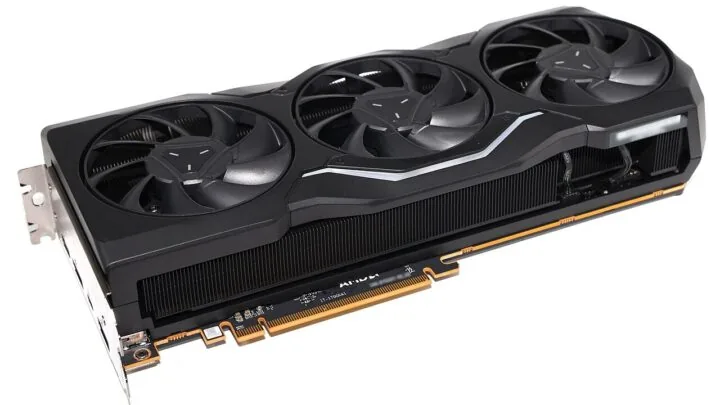
Seeing a graphics card sit at 60, 70 or 80 percent usage can look like wasted performance. The instinctive reaction is that something must be wrong: if the GPU is the expensive part, why is the game not using all of it?
Sometimes low GPU utilization really does point to a problem. Just as often, it means the graphics card is waiting because another part of the frame is setting the pace. The useful question is not “why is my GPU below 99 percent?” but “what is limiting this particular game scene?”
GPU usage is a result, not a target
A game frame is a chain of work. The CPU runs game logic, prepares draw work, handles simulation and feeds the rendering pipeline. The GPU then executes the graphics workload. If the CPU cannot prepare frames quickly enough, the graphics card has nothing useful to do for part of the time.
NVIDIA’s developer guidance is explicit that GPU optimization cannot overcome a CPU bottleneck. Microsoft’s Direct3D guidance makes the same broader point: a game can be limited by CPU-side systems even when a powerful graphics card is installed. In that situation, a lower GPU percentage is expected rather than evidence of a defective GPU.
A frame-rate cap can lower GPU usage on purpose
One of the easiest explanations is also one of the most overlooked. If a game is capped at 60, 120 or 144 FPS and the GPU can comfortably render faster than that, the card does not need to remain fully loaded. V-Sync, an in-game limiter, a driver limiter or a laptop power profile can all create a ceiling.
This is not automatically bad. A stable frame cap can reduce power draw, heat and fan noise. If the game is delivering the frame rate you asked for with consistent frame times, lower utilization is simply unused headroom.
CPU limits do not require 100 percent total CPU usage
Task Manager can make CPU bottlenecks confusing. A game may be constrained by one or a few important threads while many other cores still have spare capacity. The total CPU figure can therefore look moderate even though the thread responsible for feeding the renderer is already the limiting factor.
That is why “my CPU is only at 45 percent” does not rule out a CPU limit. Look at per-core activity, frame time and what happens when you change graphics load. If a large reduction in resolution or GPU-heavy settings barely improves FPS, the graphics card probably was not the main limit in that scene.
Game scenes can switch between CPU-bound and GPU-bound
Boundedness is not permanent. A quiet indoor corridor can be easy for both processors. A crowded city can add simulation, draw calls and streaming work to the CPU. A particle-heavy fight at high resolution can push the GPU instead. NVIDIA’s latency documentation describes modern games as moving back and forth between CPU- and GPU-bound states.
That means a utilization graph can legitimately move around while you play. A brief drop during a menu, loading transition, cutscene or CPU-heavy area is much less concerning than low utilization that persists during the exact scene where performance is poor.
When low GPU usage deserves investigation
The combination that matters is low GPU usage plus performance that is clearly below what the system should deliver. If FPS is low, the GPU is underutilized and there is no obvious frame cap or CPU limit, start checking the rest of the system.
- GPU clocks: a card running far below its normal gaming clocks may be in a power-saving state or hitting a limit.
- Temperature: sustained thermal limits can reduce clock speed and performance.
- Power: laptops can behave very differently on battery, in quiet modes or with a low system power limit.
- Drivers: a broken profile, regression or incomplete install can affect specific games.
- Background load: recording, browsers, updates, overlays and other software can steal CPU time or create stutter.
- Game-specific behavior: shader compilation, asset streaming and engine bottlenecks can produce low utilization without a hardware fault.
A simple way to identify the bottleneck
Reproduce the problem in the same area of the same game. Note FPS, GPU usage, GPU clock, GPU temperature and CPU behavior. Then make one meaningful graphics change at a time.
Start by lowering the resolution or a setting that is strongly GPU-dependent. If FPS rises substantially and GPU usage remains high, you were likely GPU-limited. If the image becomes much easier to render but FPS changes little while GPU usage falls further, the limit is probably elsewhere.
You can also test the opposite direction. Increasing resolution or GPU-heavy quality settings may raise GPU utilization without changing FPS much in a CPU-limited scene. That does not make the game faster; it simply uses some of the GPU headroom that was already available.
Do not chase 99 percent as a universal goal
Near-full GPU usage is normal when the graphics workload is the performance limit, especially with demanding settings and an uncapped frame rate. But it is not a health score. A perfectly configured PC can show much lower utilization when the game is frame-capped, CPU-limited or simply easy for the graphics card.
The number becomes useful only when it is paired with frame time, clock speed, temperature and the scene you are testing. If performance is smooth and matches the target you set, spare GPU capacity is not a fault. If performance is poor, use utilization as a clue to find the real limiting stage instead of trying to force the GPU percentage upward.
Ethan Cole
Covers graphics cards, processors, platform launches and the hardware decisions that matter to PC builders.
More from Ethan Cole →