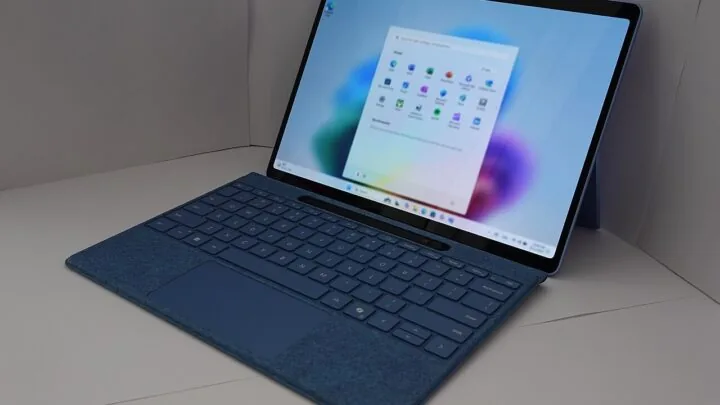

Windows 11 offers power modes with names that sound self-explanatory: Best power efficiency, Balanced and Best performance. That makes it tempting to choose Best performance on every desktop and gaming laptop and never think about the setting again.
In practice, the useful choice depends on what the computer is doing. Modern processors change frequency and power state constantly, and a more aggressive power policy can trade energy, heat and fan noise for performance without guaranteeing a visible improvement in every workload.
What Microsoft says the power modes are for
Microsoft describes Best power efficiency as the battery-saving option, Balanced as a compromise between performance and battery use, and Best performance as the mode that prioritizes performance. Windows 11 exposes these choices under Settings > System > Power & battery.
On supported systems, Windows can offer separate choices for operation on battery and while plugged in. That is especially useful on laptops because the priorities are different when the machine is connected to a wall outlet.
Balanced does not mean “slow”
Balanced mode still allows a modern CPU to boost when a workload needs performance. It is not the same thing as locking the processor to a low clock. The policy simply gives Windows and the platform more room to reduce unnecessary power use when maximum performance is not needed.
For web browsing, office work, video playback and many GPU-bound games, the difference between Balanced and Best performance can be small or invisible. If the workload is waiting on the GPU, storage or network, making the CPU power policy more aggressive does not remove that other bottleneck.
Best Performance has a cost even when the benchmark gain is small
A more performance-focused policy can allow the system to spend more time in higher-power states. On a laptop that can mean shorter battery life and more fan noise. In a thermally constrained machine, additional power can also raise temperature enough that the cooling system has to work harder.
That tradeoff can be worthwhile for rendering, compiling, simulation or another repeatable workload that finishes faster. It is less convincing when the only result is a warmer palm rest and the same frame rate.
Gaming results depend on the bottleneck
If a game is strongly CPU-limited, a performance-focused power mode may help the processor respond more aggressively or sustain higher performance on some systems. If the game is GPU-limited, the frame-rate difference can be negligible because the graphics card is already the component determining throughput.
That is why “always use Best performance for gaming” is too broad. Test the game you care about. Use the same scene, graphics settings and background applications, then compare average FPS and frame-time consistency.
Laptops deserve two separate tests: plugged in and on battery
Laptop firmware can impose additional limits that are independent of the Windows label. The same Best performance setting may behave differently when the charger is disconnected because the manufacturer prioritizes battery current, temperature and acoustics.
If you are diagnosing a gaming laptop, record whether the machine is plugged in, which vendor performance profile is selected and which Windows power mode is active. Otherwise you can compare two runs that look identical in Windows while the firmware is applying different limits underneath.
If the power-mode selector is unavailable
Microsoft notes that the Windows power-mode control may not be changeable when a custom power plan is selected in the classic Control Panel. In that situation, switching back to the Balanced power plan can restore the modern Power mode selector.
This is another reason not to stack old “ultimate performance” tweaks, vendor utilities and registry changes without documenting them. Multiple layers can alter power behavior and make the simple Windows setting confusing.
Energy Saver is a different control
Windows also has Energy saver features intended to extend battery life and reduce power use. Microsoft says Energy saver manages system processes and power use to balance performance with longer battery life. Treat that as a separate layer from the three Power mode choices when you are troubleshooting.
If performance suddenly drops on a laptop, check both the selected power mode and whether an energy-saving feature has activated because of battery level. One label rarely tells the whole story.
A sensible default for most PCs
Leave Balanced as the default unless you have a reason to change it. For a demanding workload, switch to Best performance while plugged in, run a repeatable test and decide whether the measurable gain is worth the extra power and heat. On battery, use the mode that matches how long you need the machine to last.
The setting is a policy choice, not a hidden turbo button. If performance is unexpectedly low, verify temperatures, charger status, GPU usage and vendor performance modes before assuming Windows Balanced mode is the problem.
Maya Brooks
Tracks Windows updates, driver releases, software changes and the bugs that can affect everyday PC use.
More from Maya Brooks →