Short answer: before buying a used gaming mouse, test every button, the scroll wheel, the sensor, the cable or wireless connection and the feet. Cosmetic wear is easy to see; intermittent double-clicks and wheel faults are the expensive surprises.
A used mouse can be a smart purchase because switches, sensors and wireless systems often outlast the first owner’s upgrade cycle. It can also hide faults that do not appear in a listing photo. Bring a laptop if possible and spend five focused minutes testing the device.
1. Check the shell and grip surfaces
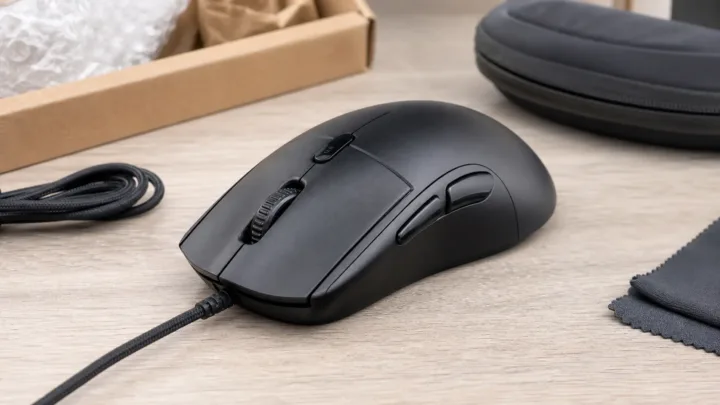
Look for cracks around the main buttons, side buttons and charging port. Squeezing the shell gently should not trigger clicks or produce a loose internal rattle. Glossy patches are normal wear; sticky coatings, deep gaps or a warped base are harder to fix.
2. Test every button more than once
Click the left and right buttons slowly, then at your normal gaming pace. Each press should register once. Test the middle click, DPI button and every side button. A switch that works nine times out of ten is already failing.
You can run ACC64’s free online mouse button and double-click test directly in a browser. It checks buttons, scrolling and unusually fast repeated clicks without requiring an installation. Repeat the test instead of judging the mouse from one reading.
3. Inspect the scroll wheel
Scroll slowly in both directions on a long page. The page should move consistently without jumping backward. Press the wheel and test any tilt inputs. A wheel encoder can fail even when the middle button still works.
4. Look for sensor problems
Move the pointer in slow circles, straight lines and quick swipes. Watch for skips or a cursor that continues moving after the mouse stops. Test on a normal mouse pad rather than glass. Clean visible dust from the sensor opening before assuming the hardware is defective.
5. Check the cable, receiver or Bluetooth
For a wired mouse, gently move the cable near the mouse and USB plug while watching for disconnects. For a wireless model, confirm that the original receiver is included; replacement receivers are not always compatible. Test charging and verify that the battery holds enough charge for a realistic session.
6. Inspect the mouse feet and base
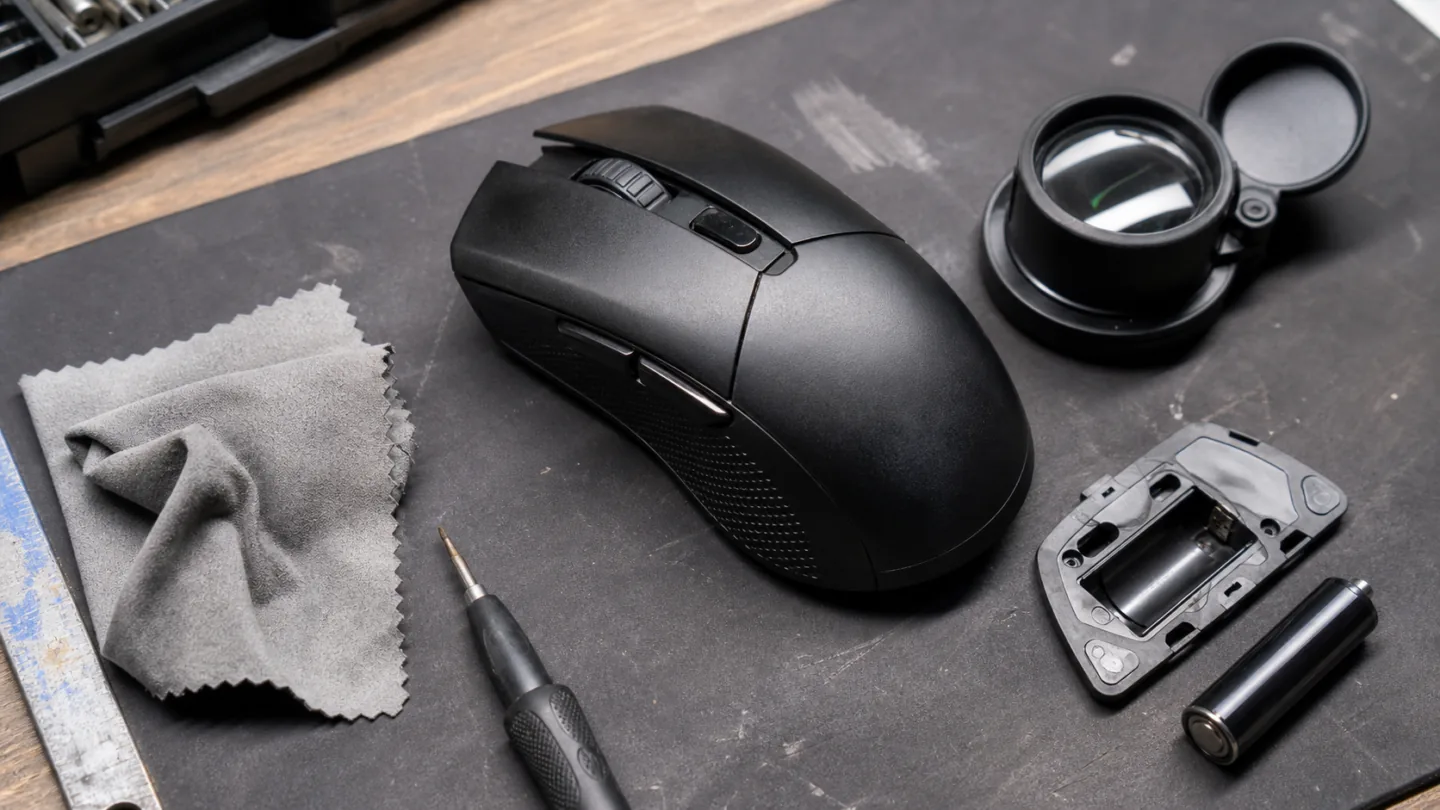
All feet should sit flat and have usable material remaining. Scratched or missing skates make movement inconsistent, although replacements can be inexpensive. Check whether screws are damaged or covered by mismatched feet, which may indicate an earlier repair.
7. Confirm software support
Older hardware may lose access to current configuration software. Before paying, verify support for your version of Windows and confirm that onboard profiles, polling rate and button assignments work as expected. Avoid installing software from an unknown seller’s USB drive.
8. Compare the price with a new alternative
Add the cost of new skates, a battery or replacement cable. If the used price is close to a new mouse with a warranty, the savings may not justify the risk. A good used purchase should be cheap enough to absorb minor wear without depending on a difficult repair.
If you are evaluating a complete used setup, also use our checklist for buying a used mechanical keyboard. Test first, pay second and keep the conversation with the seller focused on repeatable behavior rather than promises.
Olivia Grant
Covers laptops, displays, mice, keyboards, headsets and the hardware people actually use at their desks every day.
More from Olivia Grant →