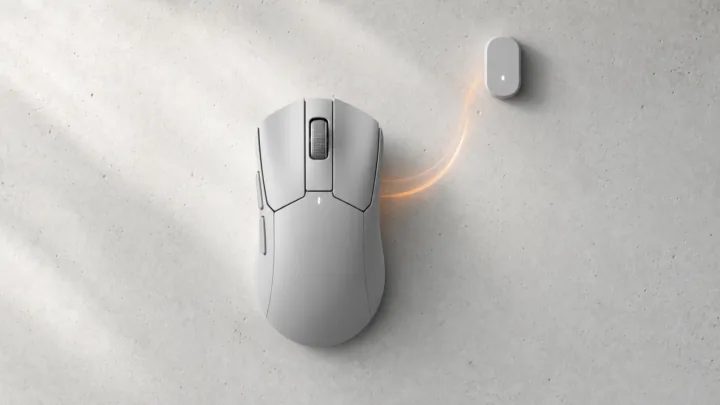
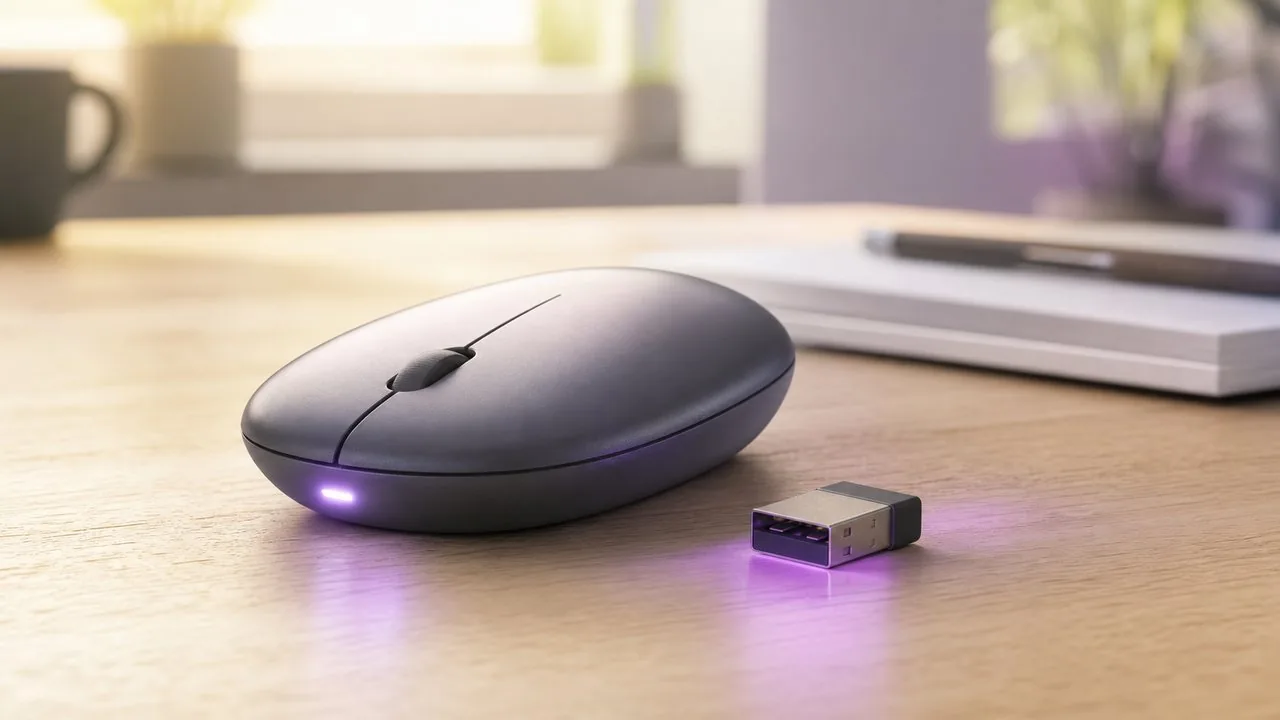
Logi Bolt is Logitech’s receiver platform used by many newer productivity mice and keyboards. If the original receiver is lost or damaged, a compatible Bolt mouse can be paired with another Logi Bolt receiver through Logi Options+. The process is straightforward, but only after you identify the receiver correctly.
The most common mistake is treating every small Logitech receiver as the same thing. Logi Bolt, Logitech Unifying, LIGHTSPEED and ordinary Bluetooth are separate connection systems. For Logitech G gaming mice, see our LIGHTSPEED replacement receiver guide instead. A mouse that supports one system does not automatically support the others.
Check for the Logi Bolt logo before pairing
Look at the receiver and the device documentation. A Bolt receiver is marked as Logi Bolt, while older Unifying receivers use the familiar orange Unifying symbol. If your mouse was originally sold with a Bolt receiver, use another compatible Bolt receiver rather than an older Unifying dongle.
Also check whether the mouse supports both Bolt and Bluetooth. Bluetooth support can be useful for testing the mouse itself, but pairing it over Bluetooth does not pair it to the USB receiver. The two connections are configured separately.
Install Logi Options+ and connect the receiver
Install the current Logi Options+ application and plug the Logi Bolt receiver into the computer. A direct USB port is preferable while troubleshooting. If the computer has only USB-C ports, use a reliable adapter rather than an unpowered multiport hub for the first pairing attempt.
Open Logi Options+ and choose Add Device. When the application asks for a connection type, select the Logi Bolt receiver option. This tells Options+ to search for a Bolt device rather than starting the operating system’s Bluetooth pairing flow.
Put the mouse into Logi Bolt pairing mode
Logitech’s current instructions say to long-press the connect button on the Bolt mouse for about three seconds until the device light blinks rapidly. On mice with Easy-Switch channels, select the channel you want to use before holding the button. A slow or steady indicator can mean the mouse is powered on but not actually discoverable.
- Plug the Logi Bolt receiver into the computer.
- Open Logi Options+ and select Add Device.
- Choose Logi Bolt receiver as the connection type.
- Hold the mouse connect button until the indicator blinks rapidly.
- Wait for Options+ to detect the mouse.
- Select Connect and complete the verification shown by the app.
The verification step helps make sure you are pairing the intended device rather than another nearby Bolt peripheral. Follow the button or confirmation prompt exactly as displayed.
If Options+ cannot find the mouse
Start with power. Charge the mouse or install a fresh battery, then switch it off and on. Put it back into rapid-blink pairing mode and keep it close to the receiver. If several Logitech devices are nearby, temporarily power off the ones you are not pairing.
Next, move the receiver to another USB port and reopen Options+. If the receiver itself never appears, test it on another computer. If the receiver is detected but the mouse is not, check that the mouse model really supports Logi Bolt and that you are using the correct Easy-Switch channel.
If the mouse connects over Bluetooth but not Bolt, that proves the mouse can power on and communicate, but it does not prove the Bolt radio path is configured correctly. Return to Options+ and repeat the receiver-specific pairing flow.
Can one Bolt receiver be used with multiple devices?
Logi Bolt is designed to support multiple compatible Logitech devices through one receiver, but each device still has to be paired. Adding a second mouse or keyboard does not happen automatically just because the first device works.
When replacing a receiver, pair one device at a time. Confirm that the first mouse is stable before adding another peripheral. This makes it easier to identify whether a problem belongs to the receiver, a specific device or the USB connection.
What to do after the mouse is paired
Move the pointer, test every button you use and scroll in both directions. Then disconnect and reconnect the receiver to confirm that the mouse returns without repeating the pairing process. A normal paired device should remember the receiver association.
If the mouse repeatedly forgets the connection, disappears from Options+ or only works at very short range, try another USB port and another computer. That separates a pairing problem from USB power, local interference or a failing receiver.
When a replacement receiver will not solve the problem
A new receiver cannot repair a mouse with a dead radio, damaged power circuit or firmware problem. If the mouse cannot enter pairing mode, will not stay powered on or fails on both Bolt and Bluetooth, investigate the mouse itself. Likewise, if a known-good Bolt mouse cannot see the replacement receiver on two computers, the receiver may be defective or incompatible.
The safest rule is simple: match the wireless ecosystem first, use Logitech’s current pairing software second and only then troubleshoot hardware. That avoids wasting time trying to force a Bolt mouse onto a receiver it was never designed to use.
Olivia Grant
Covers laptops, displays, mice, keyboards, headsets and the hardware people actually use at their desks every day.
More from Olivia Grant →